

Draw exactly where your cameras should watch
Updated
Short answer: with Woodcock AI you can draw polygon detection areas on each camera, so alerts only fire inside them. Place points around a stockpile, along a fence line or across a yard entrance, and the AI watches that shape rather than the whole picture. Many systems only offer a simple line or a rectangular box; a polygon follows the real outline of the area that matters, on the CCTV cameras you already have.
Why whole-frame and rectangle detection cause false alarms
Most CCTV views take in far more than the thing you actually want to protect. If the whole picture can raise an alert, the whole picture can raise a false one.
A typical yard camera sees a stockpile, but it also sees floodlights, the sky, a road beyond the fence, parked plant, puddles that catch the light and a neighbour's unit. Basic motion detection reacts to change anywhere in that view. Rain streaking past the lens, insects drawn to the infrared, headlights sweeping across a wall and shadows moving as the floodlights cycle can all look like activity. Our guide to reducing CCTV false alarms covers these causes in more detail.
The usual fix is to draw a box. But real sites are not rectangular, and cameras are rarely mounted square-on. A stockpile seen from a pole in the corner of a yard is a sloping, irregular shape. Draw a rectangle round it and the corners of that rectangle reach out into open yard, up into the floodlights and across walls. Draw the rectangle smaller to avoid them and you clip off part of the pile you meant to watch.
Lines have the opposite problem. A line-crossing rule is good at one question, "did something cross here?", but it says nothing about what is happening inside an area. Smoke rising from the middle of a stockpile never crosses a line at the edge of it.
The result, on many systems, is the same compromise: either the detection area covers too much and alerts too often, or it covers too little and misses what matters. Once a phone has buzzed all night for floodlight glare, people stop looking, and the alert that matters is easy to miss.
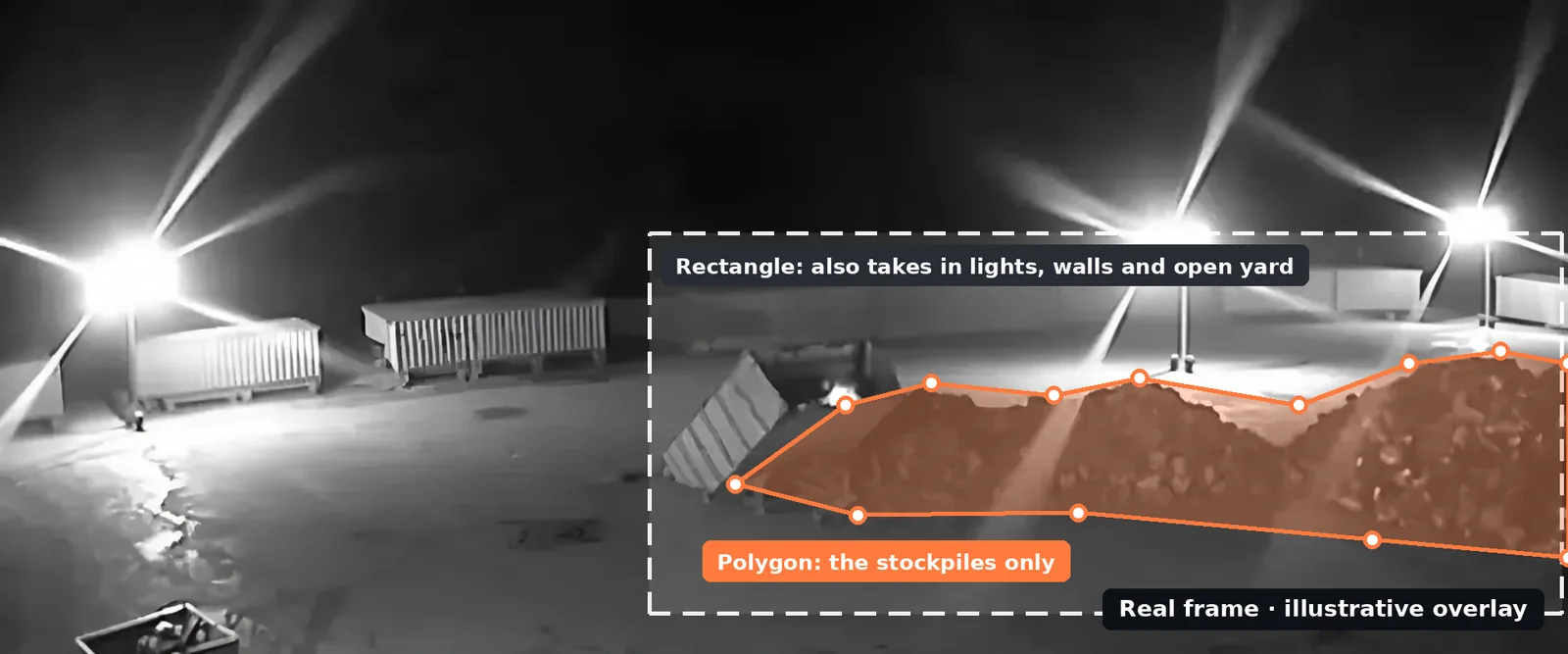
How polygon detection areas work
A polygon detection area is a shape made of points you place on the camera view. With Woodcock AI, alerts only fire for detections inside that shape.
Setting one up starts with a still from the camera. Points are placed around the edge of the area that matters, one at each corner or change of direction, and the last point joins back to the first to close the shape. Because there is no limit to the outline being a rectangle, the area can follow a sloping stockpile, a fence that runs away from the camera at an angle, an L-shaped bay or the curve of a yard entrance.
Once the area is saved for that camera, the AI keeps analysing the video, but it only raises an alert when what it detects is inside the polygon. Smoke over the stockpile alerts. Glare round a floodlight outside the polygon does not. Your recorder keeps recording the full view exactly as it does today; the polygon controls where Woodcock AI raises alerts, not what your cameras record.
The areas are set in Woodcock AI rather than inside each camera, so they work on the existing ONVIF and RTSP cameras and recorders that Woodcock AI connects to. You do not need cameras with analytics built in, and you do not need to learn a different settings menu for every brand on site. See how Woodcock AI works for the full path from camera to alert.
Every camera view is set up for the risks it covers. Whether a particular camera needs more than one area, and which detection types apply in each, is confirmed for your cameras in the free site assessment.
Try it: whole frame, rectangle or polygon
Switch between the three kinds of detection area on a real night-time frame from a camera running Woodcock AI, or draw your own polygon and see which example events would alert.
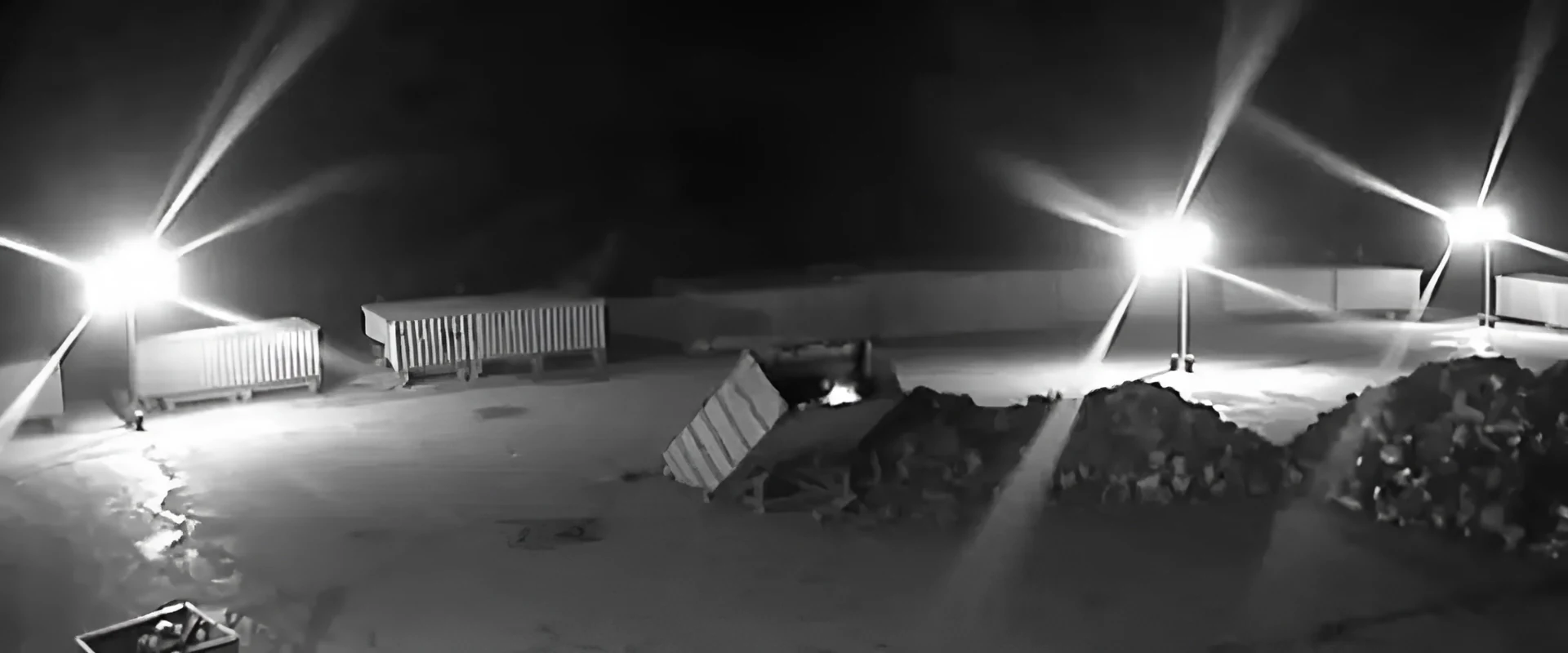 Real frame · illustrative overlay
Polygon selected: only the stockpiles are watched.
- Smoke-like haze over the stockpileAlert, inside the area
- Glare flaring round a floodlightIgnored, outside the area
- Reflection on wet ground in the open yardIgnored, outside the area
See where the polygons would go on your cameras
A free site assessment looks at your existing camera views and marks out the areas worth watching on each one.
Polygon detection zones on real kinds of site
The examples below are illustrative, but each one is a situation we see on industrial and waste sites: one area that matters, surrounded by things that do not.
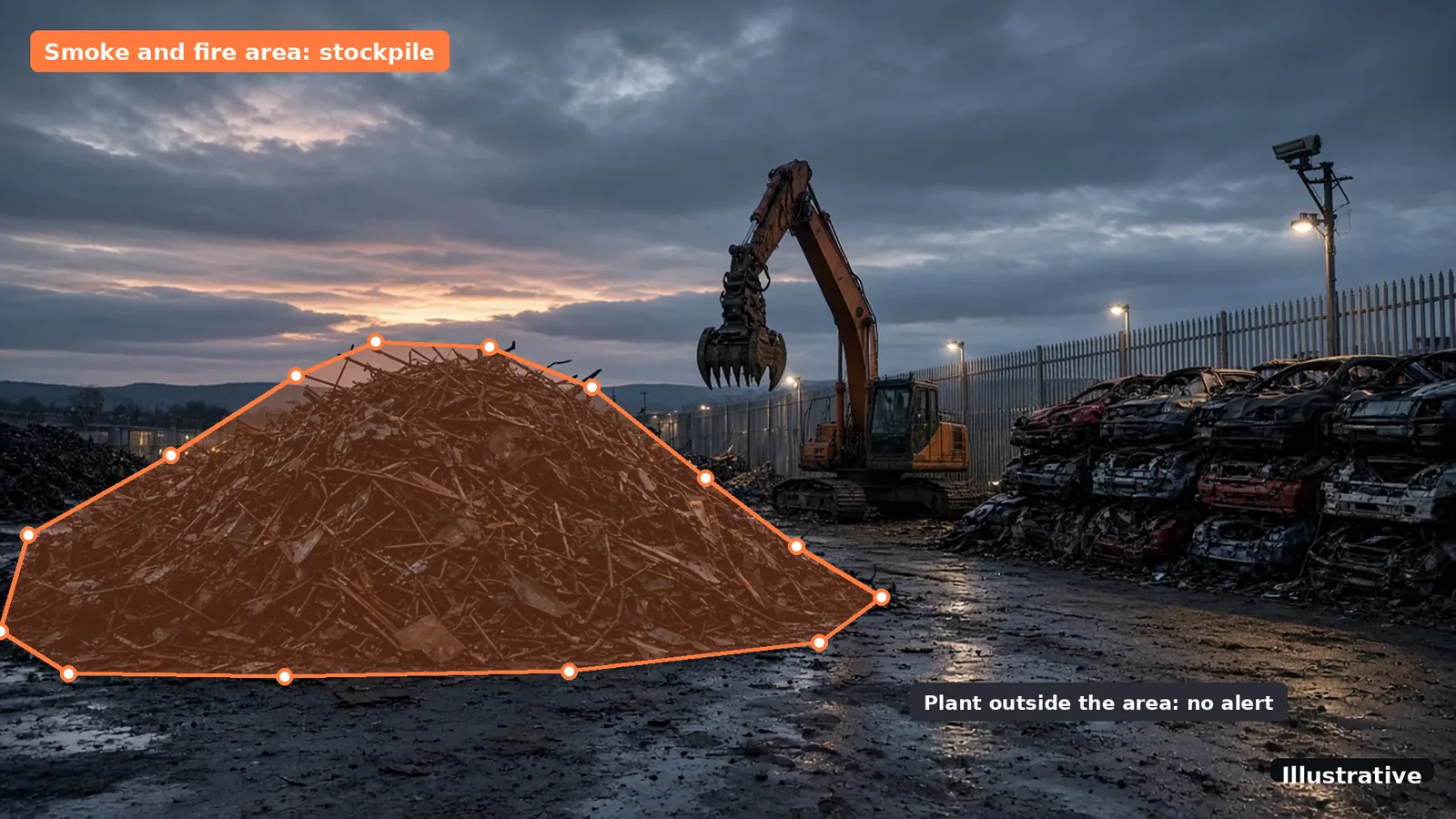
A polygon round a waste stockpile for smoke and fire
On a waste or recycling site, the stockpile is where a fire is most likely to start, often from a battery or a hot load deep in the pile. The camera covering it usually also sees the plant that works the pile, the road through the yard and the lights. A polygon drawn round the stockpile itself means smoke and flame over the pile raise an alert with the clip attached, while exhaust from a machine parked beside it, outside the area, does not. Read more about smoke and fire detection on existing CCTV and AI CCTV for waste and recycling.
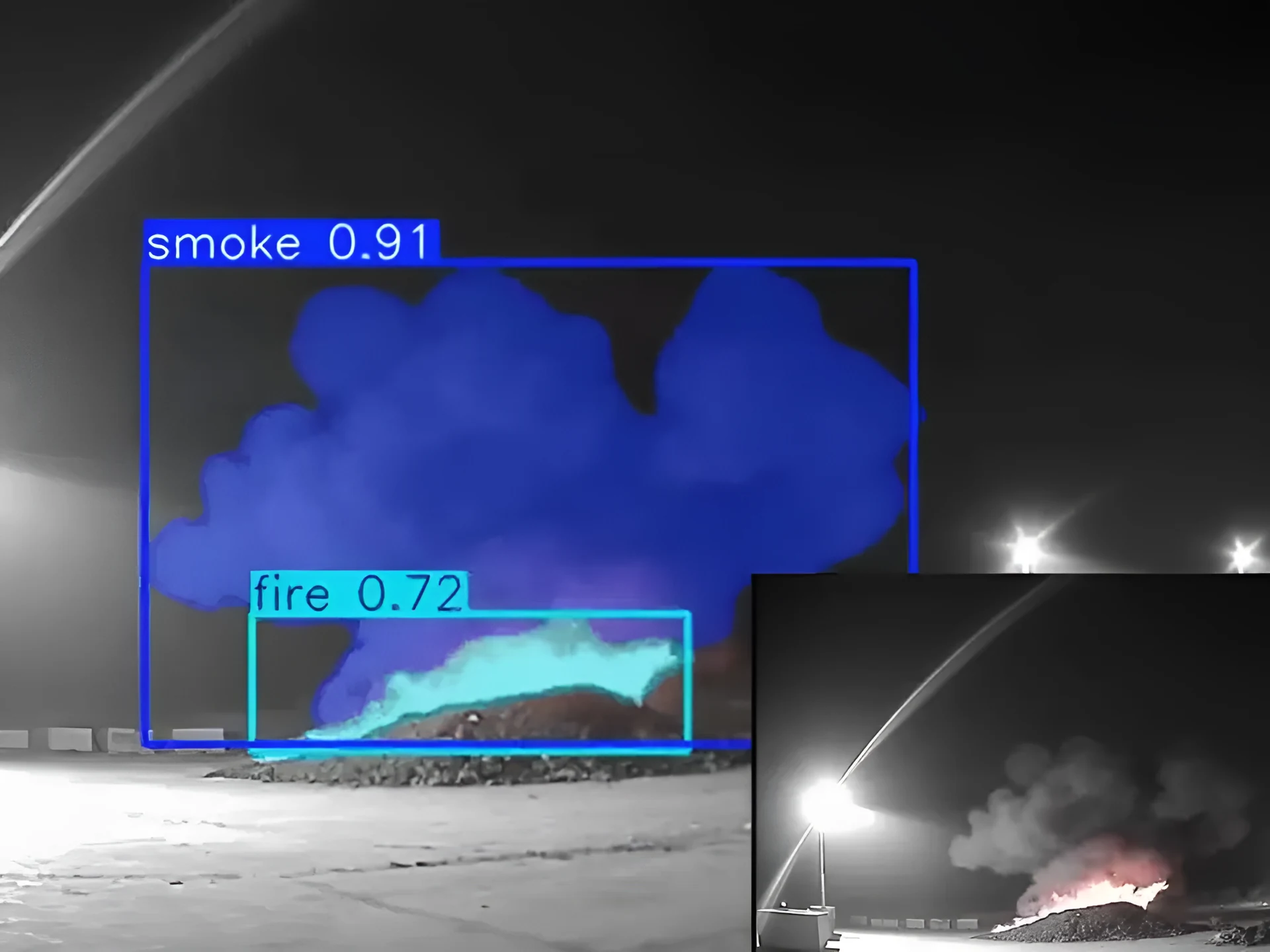 Real detection
A fence-line polygon for out-of-hours intrusion
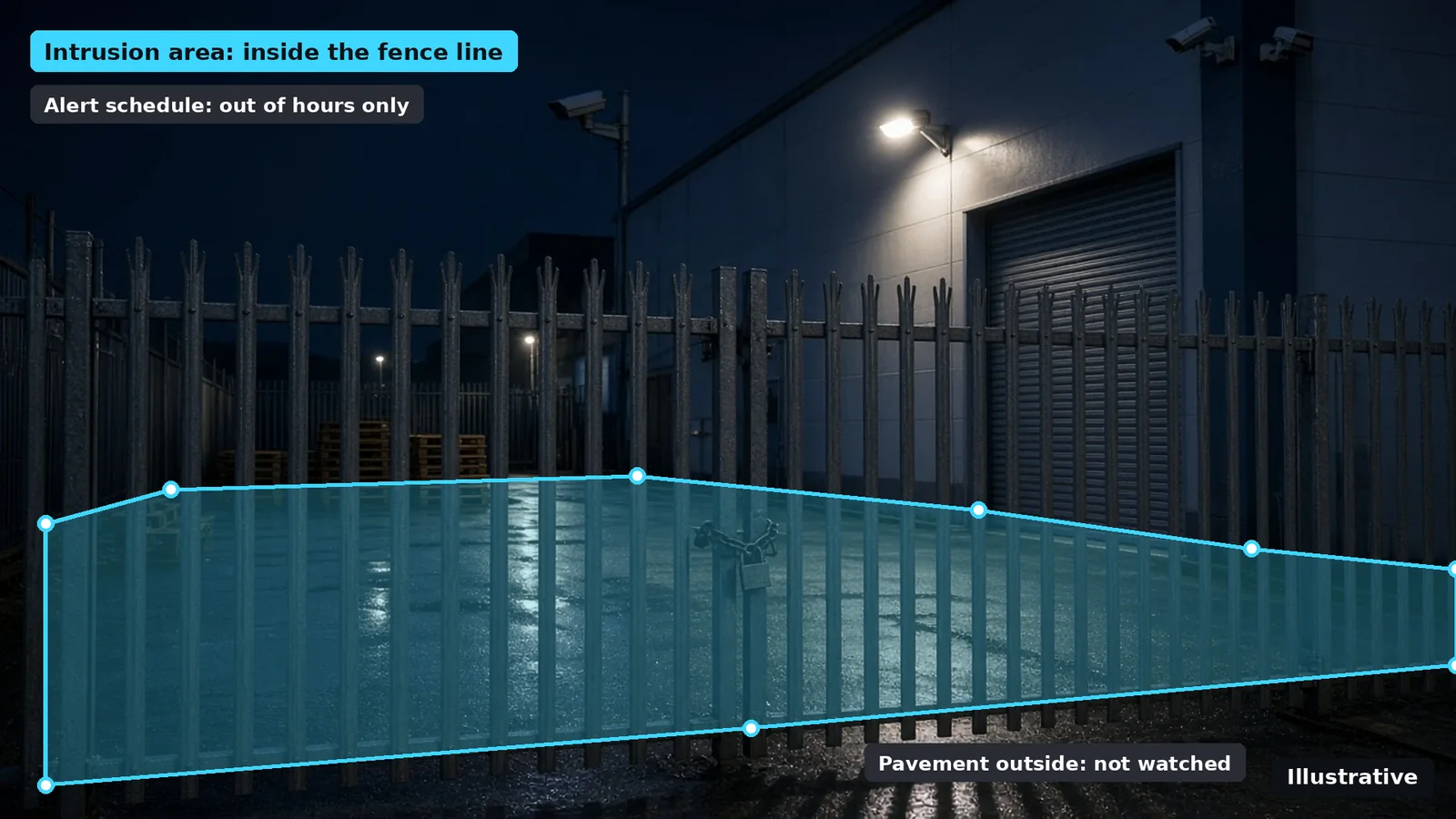
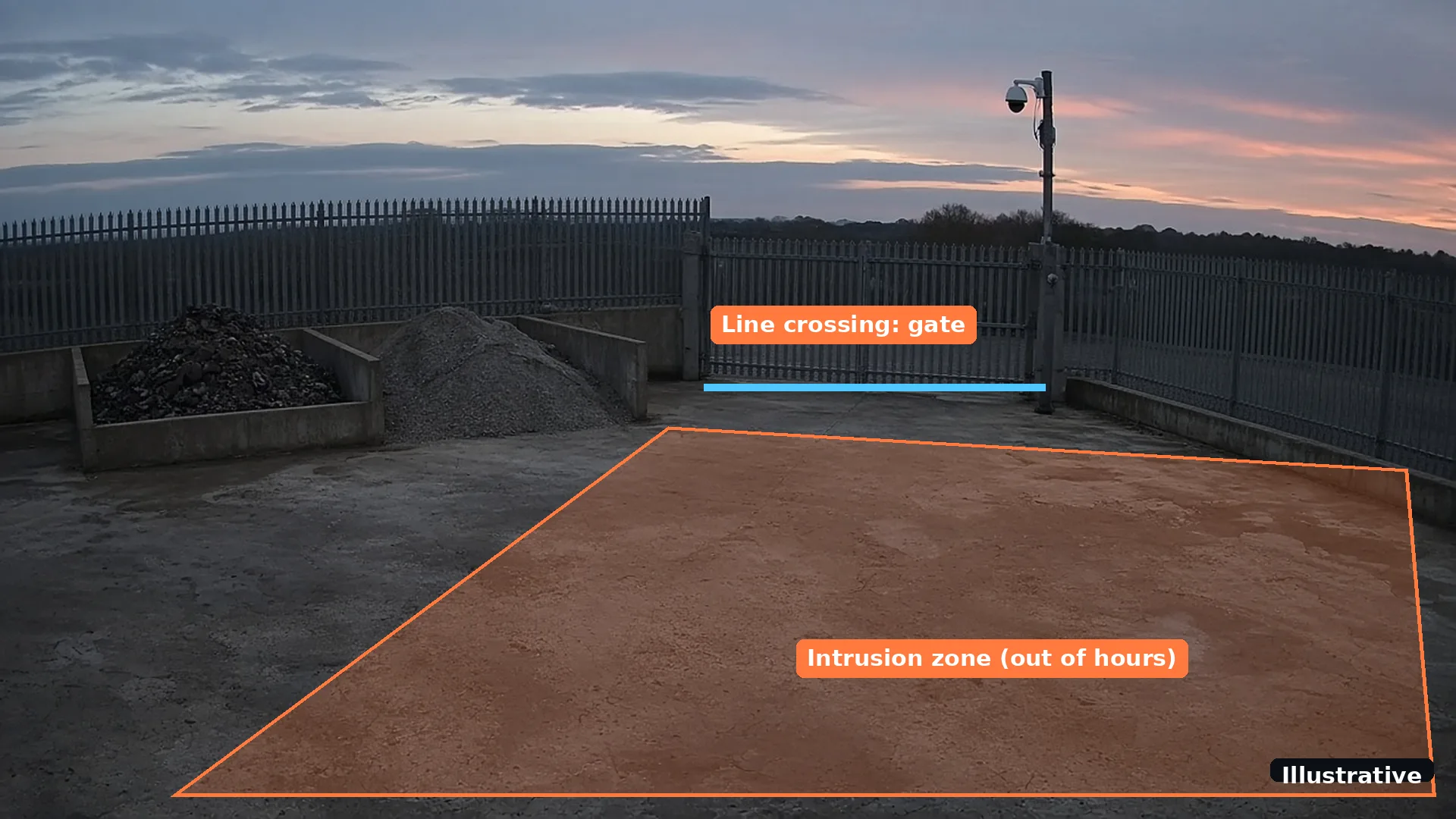
A perimeter camera often looks across a fence onto a public pavement or road. Whole-frame detection on that view alerts every time someone walks a dog past at night. A narrow polygon along the inside of the fence line, combined with an out-of-hours alert schedule for that camera, means the camera only alerts when someone is inside the fence when nobody should be. The pavement outside is not watched at all. More on this in AI intrusion detection and the out-of-hours site security checklist.
A yard-entry polygon for vehicles
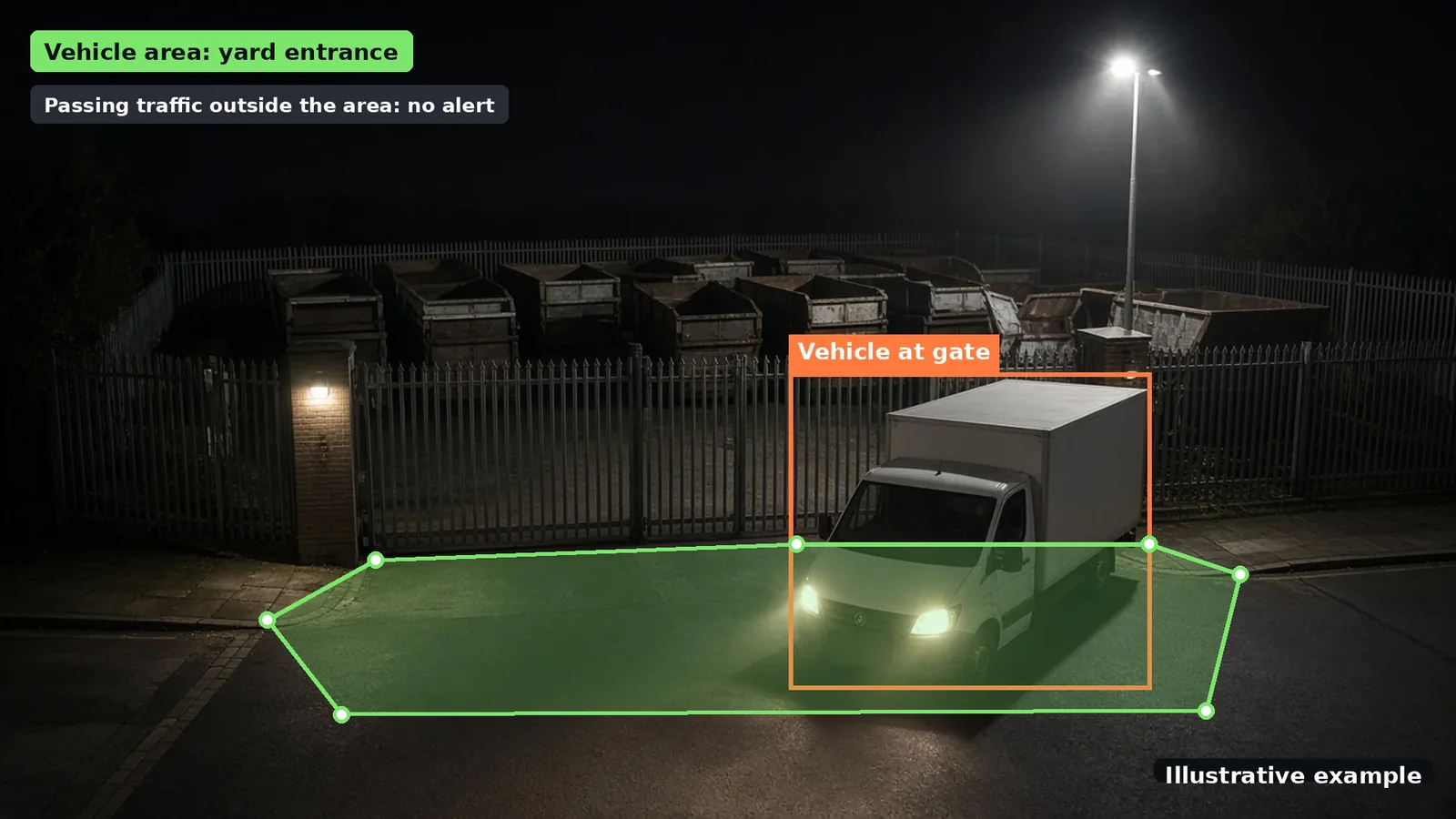
At the gate, the useful question is whether a vehicle has come onto the site, not whether traffic is moving on the road outside. A polygon over the yard entrance, rather than the whole street scene, means a vehicle pulling in after hours raises an alert with the clip while passing cars stay outside the area. See vehicle detection and AI CCTV for vehicle yards.
Safety areas
The same idea applies to safety modules such as PPE detection, where supported: a rule only makes sense in the part of the site where it applies. What is available on your cameras is confirmed in the site assessment. See PPE detection.
Per-camera alert schedules
The polygon decides where a camera alerts. The alert schedule decides when. You can set an alert schedule for each camera.
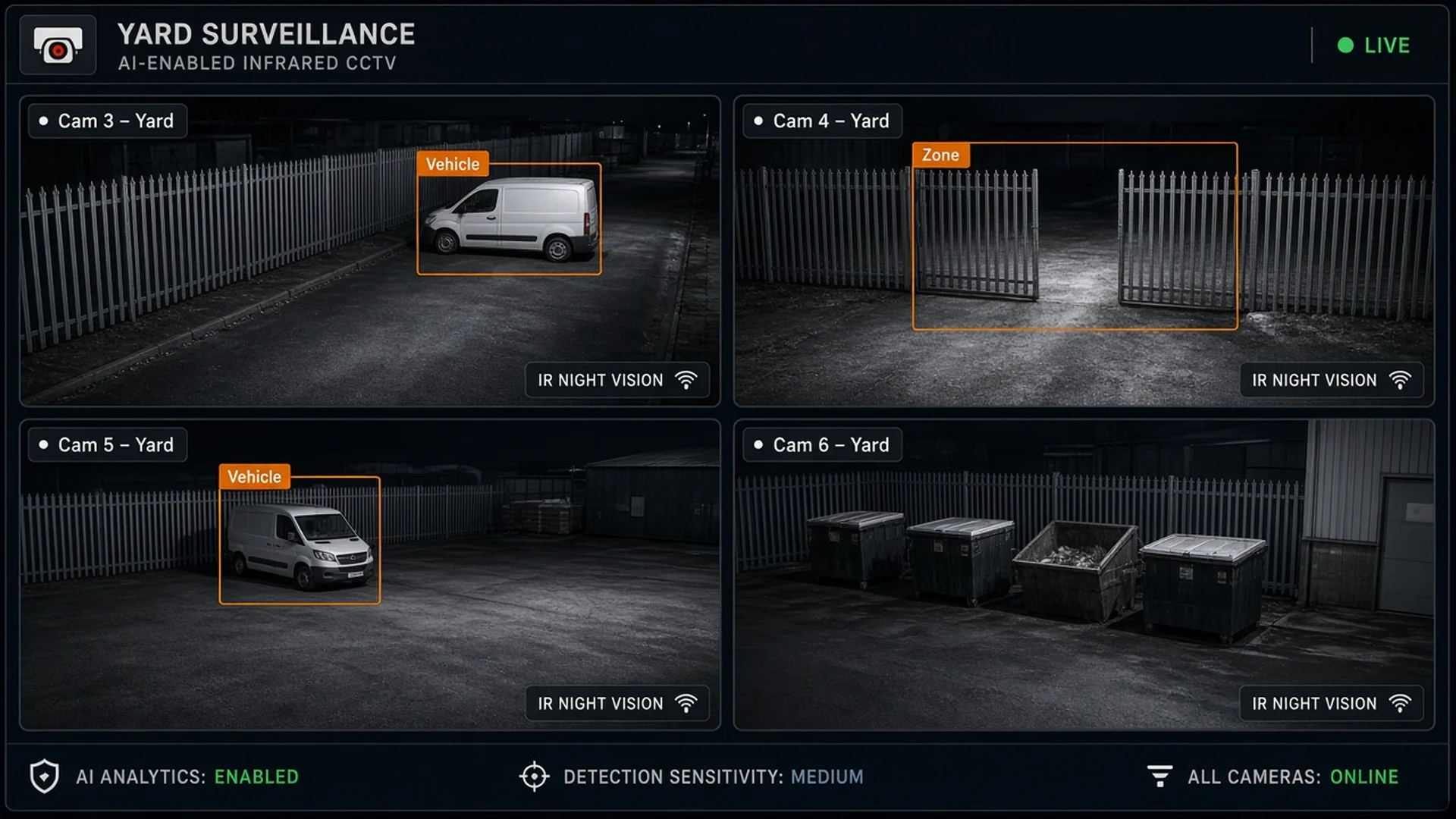
A busy yard looks very different at midday and at midnight. During the working day, people and vehicles inside the fence line are normal; at night, they are exactly what you want to know about. A camera watching the fence can be scheduled to alert only out of hours, while a camera watching a stockpile or a battery store stays on watch around the clock, because a fire does not keep office hours.
Putting the two together keeps alerts focused. The right area, at the right time, on the right camera, sent to your phone with the clip, so you can see straight away whether something needs action. If you want a monitoring centre to respond, alerts to a monitoring centre (ARC) and phone-call alerts are available as optional paid add-ons. Compare the approaches in AI CCTV vs remote CCTV monitoring.
 Illustrative
How polygon areas combine with self-learning feedback
Polygons and self-learning tackle false alarms from two directions: one limits where the AI alerts, the other improves what it alerts on.
A polygon removes whole parts of the picture from the question. Floodlights, roads and neighbouring land outside the area cannot raise an alert at all. But inside the area there can still be things that look like trouble: steam drifting over a stockpile on a cold morning, dust thrown up by a loader, or a reflection on wet ground.
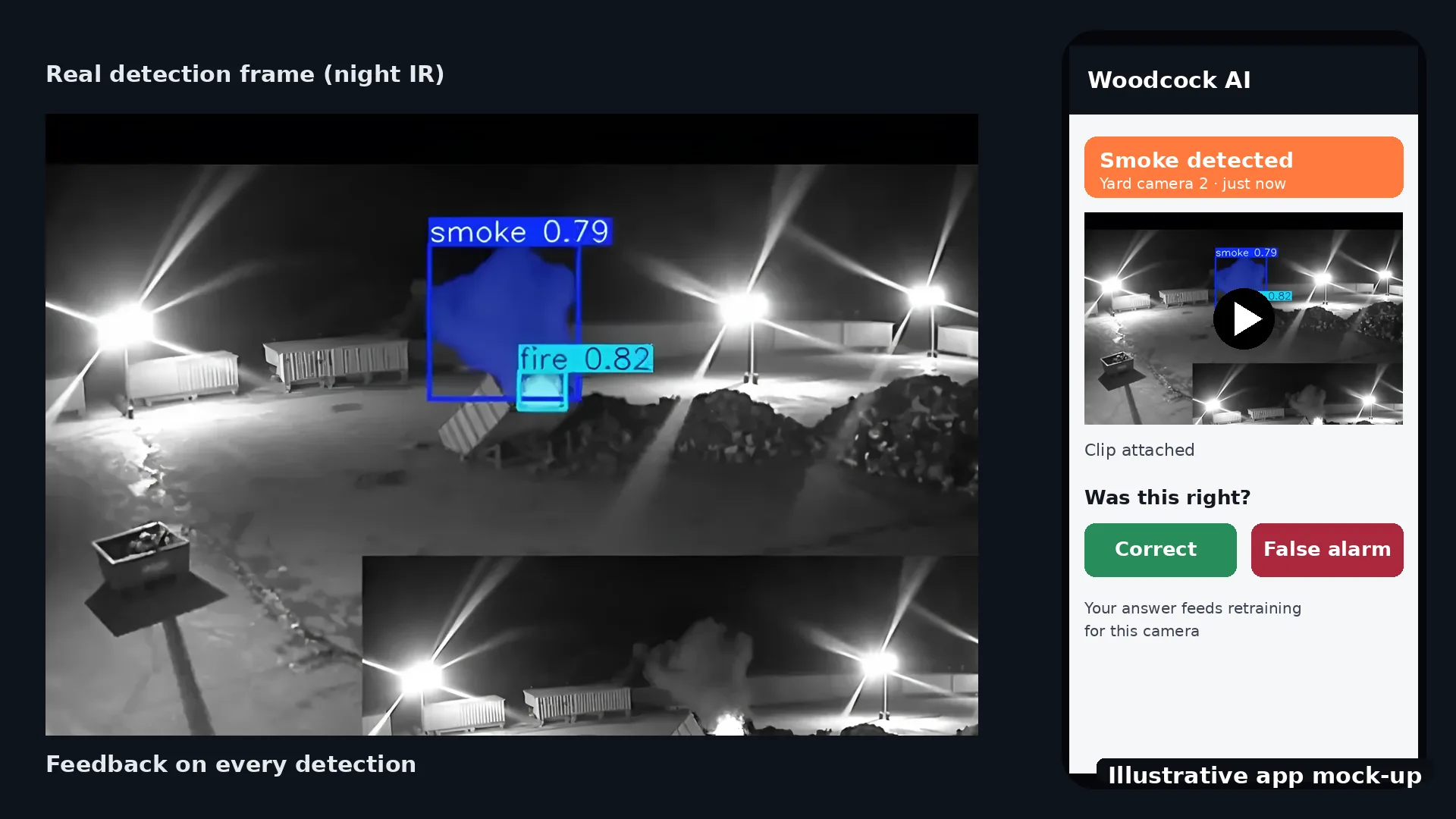
That is where the self-learning side comes in. Woodcock AI learns each of your site's cameras, and every detection comes with a feedback button. When an alert inside a polygon turns out to be steam rather than smoke, marking it as wrong feeds into retraining for your site. Over time the AI gets better at telling the real thing from the everyday conditions inside the areas you care about. Read more about self-learning AI.
When you need to look back, you can ask plain-English questions about your footage and download the clip; see ask your cameras.
 Illustrative
Polygon areas vs line crossing vs on-camera analytics
Each approach answers a different question. The table compares them in plain terms; capabilities of other systems vary by product, so treat it as a guide rather than a specification.
| Whole-frame motion | Line crossing | On-camera analytics | Woodcock AI polygon areas | |
|---|---|---|---|---|
| What triggers an alert | Any change anywhere in the picture | Something crossing a line you set | Rules set inside each camera, such as a box or a line | A detection inside the area you drew |
| Fit to awkward shapes | None: the whole view is watched | A line, not an area | Often a simple box or a few points, depending on the model | Follows the real outline: a stockpile, a fence line, a yard entrance |
| What it looks for | Movement of any kind | Movement across the line | Varies by camera brand and model | AI detection such as smoke and fire, intrusion or vehicles, learnt on your cameras |
| Common nuisance alerts | Rain, insects, headlights, shadows, trees | Anything crossing near the line, such as animals or debris | Depends on the camera, its settings and its firmware | Kept down by watching only the area that matters, plus feedback that feeds retraining |
| Timing | Usually always on | Often a schedule on the recorder | Set per camera, if supported | Alert schedule set per camera |
| Cameras needed | Any camera | Recorder or camera that supports it | Cameras with analytics built in | Your existing ONVIF or RTSP cameras |
Line crossing still has its place, for example across a gateway where the only question is whether something passed through. On-camera analytics can work well on a single modern camera, but the options depend on the make and model, and on a mixed estate every camera is set up differently. A polygon drawn in Woodcock AI works the same way across the cameras it connects to. For the wider picture, see video AI vs thermal vs on-camera analytics and the glossary.
 Illustrative
How to set up polygon detection zones on existing CCTV
Set-up is done with you, camera by camera. Our technical team helps for free, on site or remotely, and support is available 24/7.
- Book a free site assessmentWe look at your existing camera views and the risks you want covered on each one, such as smoke and fire at a stockpile or intrusion along a fence line.
- Connect your existing camerasWoodcock AI connects to your ONVIF or RTSP cameras or recorder. Our technical team helps with set-up, on site or remotely.
- Choose the risk for each cameraDecide what each view is there for: smoke and fire, intrusion, vehicles, or safety modules such as PPE detection, where supported.
- Draw the polygonOn a still from the camera, place points around the area that matters, following its real outline. Close the shape and the area is set.
- Set the camera's alert scheduleChoose the hours when that camera should send alerts, for example out of hours only for a fence line, or around the clock for a fire risk area.
- Go live and give feedbackAlerts arrive with the clip. Use the feedback button on each detection to mark it as right or wrong, which feeds into retraining for your site.
Good polygons follow the real edge of the risk with a small margin, leave out light sources and roads where possible, and get redrawn when the layout changes, for example when a stockpile is moved. New to the idea? Start with what is AI CCTV, or browse all detection modules.
What is a polygon detection zone?
It is an area drawn on a camera view by placing points around the part of the scene that matters, such as a stockpile, a fence line or a yard entrance. The points join up into a shape that follows the real outline of that area. With Woodcock AI, alerts only fire for detections inside the polygon.
How is a polygon different from a rectangle or a line?
A rectangle has to cover everything between its four corners, so on an angled camera view it usually takes in walls, lights, roads or open yard you did not mean to watch. A line only tells you that something crossed it. A polygon follows the actual shape of the area, so less of the picture can set off an alert.
Do polygon detection zones work with my existing cameras?
Yes. The polygon is set in Woodcock AI, not inside the camera, so it works with the existing ONVIF or RTSP cameras and recorders that Woodcock AI connects to. You do not need cameras with built-in analytics.
Can I have more than one zone on a camera, with different detections?
Each camera view is set up for the risks it covers. Whether a particular camera needs more than one area, and which detection types apply in each, is confirmed for your cameras in the free site assessment.
Can each camera alert at different times?
Yes. You can set an alert schedule for each camera, so it only sends alerts during the hours you choose, for example a fence-line camera that alerts out of hours while a stockpile camera stays on watch around the clock.
Does a zone stop my cameras recording outside it?
No. Your recorder keeps recording the full view as it does today. The polygon decides where Woodcock AI raises alerts, not what your cameras record.
How do zones work with the self-learning AI?
They do different jobs. The polygon decides where the AI raises alerts. The AI also learns each of your cameras, and every detection carries a feedback button; marking an alert as right or wrong feeds into retraining for your site.
What happens when the site layout changes?
Stockpiles move, bays get reused and new gates go in. When that happens the polygon should be redrawn to match the new layout. Our support team is available 24/7 if you need a hand.
Draw the areas that matter on your existing cameras
A free site assessment looks at your camera views, marks out the areas worth watching and suggests a schedule for each camera.
Illustrative 3D render