

Line crossing detection on your existing CCTV
Woodcock AI lets you draw a line on any camera view, along a fence top, across a gate or along a roof edge, and sends an alert when a person or vehicle crosses it. You choose which direction counts and when each camera is armed, and the alert arrives by app and email with the clip, so you can see who crossed and act.
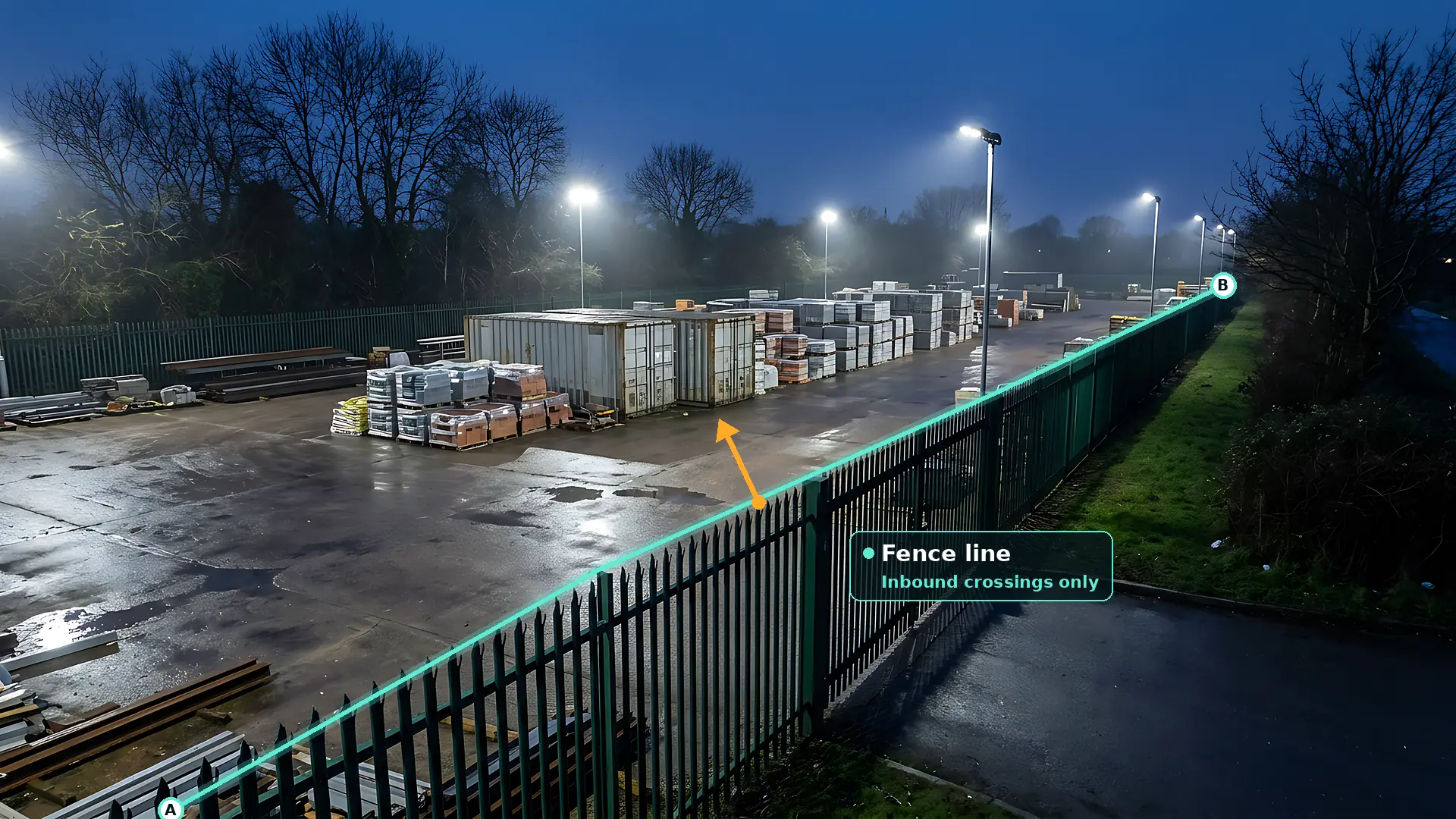
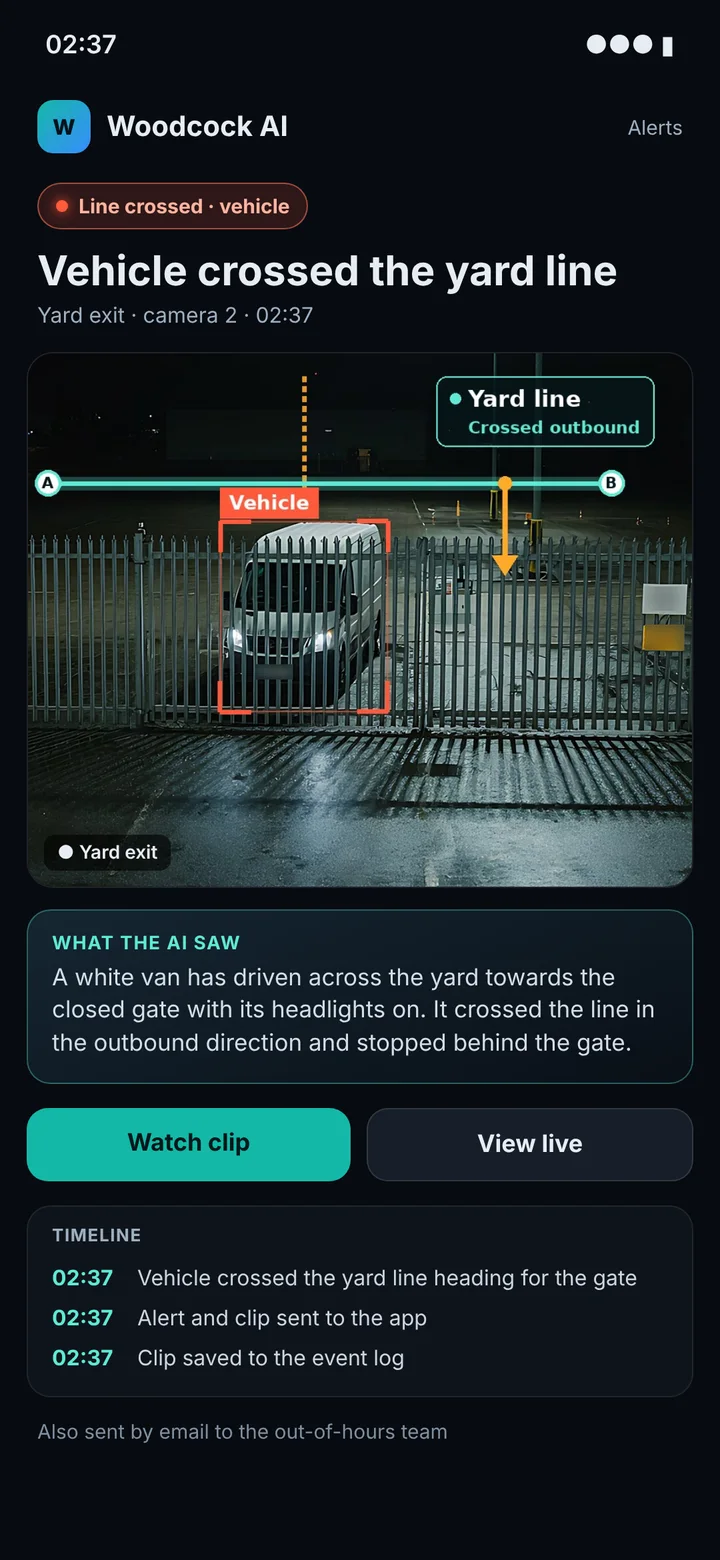
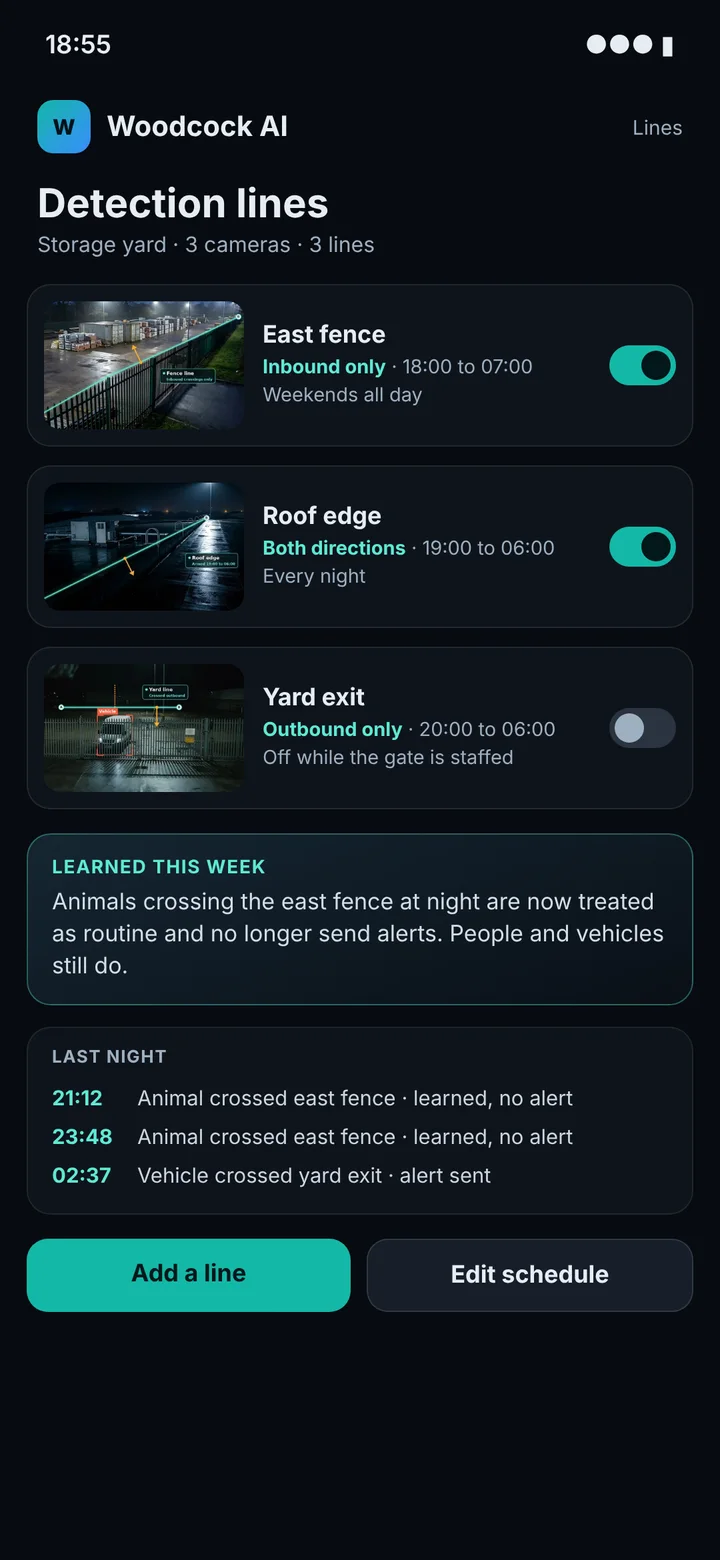
What line crossing detection is
Line crossing detection, often called a virtual tripwire, is a rule drawn on a camera view. You place a line from one point to another where crossing it matters, and the system raises an alert when a person or vehicle crosses from one side to the other.
The idea is simple, and it maps neatly onto how sites are actually protected. Most security questions on a yard, a compound or a warehouse are about boundaries. Did anyone come over the fence? Did a vehicle leave through the gate after we locked up? Did someone get onto the roof? A line answers each of those questions directly, because it sits exactly where the boundary is on the picture.
What makes a line useful, rather than a source of noise, is what decides that something crossed it. Older camera analytics compare pixels: if enough of the picture changes on one side of the line and then the other, they call it a crossing. That is why a tripwire on a basic recorder can be set off by a swaying branch, a shadow or a cat. Woodcock AI only counts the people and vehicles it has detected in the scene and follows them from frame to frame, so a crossing means an object you care about has moved from one side of the line to the other.
Every line has three settings. The position is where the line sits on the view, from point A to point B. The direction is which way a crossing has to go before it counts: with the arrow, against it, or either way. The schedule is when the camera is armed. Get those three right and a single line can replace hours of watching a fence on a monitor.
Line crossing is one part of Woodcock AI's intrusion detection. It runs on the same cameras, alongside polygon detection zones and, where a camera needs it, smoke and fire detection, so one view can do several jobs at once.
Line crossing vs polygon zones vs motion detection
Lines, polygon zones and motion detection answer different questions. Picking the right one for each camera is the difference between alerts people trust and alerts people mute.
Motion detection reacts to change anywhere in the picture, or in a box drawn over it. It cannot tell a person from a moving shadow, so outdoors it reacts to weather, headlights, insects at night and trees in the wind. It is the reason many sites switched their camera alerts off years ago.
Line crossing asks one precise question: did a person or vehicle cross here, and which way? It suits boundaries and pinch points, where a crossing is the event you care about. A line says nothing about what is already inside an area, so on its own it will not tell you that someone has been in the yard since before it was armed.
Polygon zones ask whether a person or vehicle is inside an area. In Woodcock AI you draw polygon detection zones point by point, so the zone can follow the real shape of a compound, a stockpile or a fence running away from the camera. Most competitors offer only boxes or lines; polygons let a zone take in exactly the ground that matters.
| Question | Motion detection | Line crossing | Polygon zone |
|---|---|---|---|
| What triggers it | Any change in the picture | A person or vehicle crossing the line | A person or vehicle inside the area |
| Direction | None | Arrow direction, reverse or both | Not applicable |
| Best for | Indoor rooms with nothing moving | Fences, gates, roof edges, entries | Compounds, stockpiles, yards |
| Weak spots | Weather, shadows, headlights, animals | Says nothing about who is already inside | Needs a clear view of the whole area |
In practice, the strongest set-ups use lines and zones together. A line across a yard gate set to inbound only catches the moment someone arrives; a polygon over the yard behind it catches someone who was already inside, or who came over a stretch of fence the line does not cover. The free site assessment looks at each view and suggests which rule, or which mix, fits it.
Alert on the crossings that matter, ignore the ones that do not
Most gateways are used in both directions, and only one of them is a problem out of hours. Direction-aware lines let you alert on that one.
When you draw a line, an arrow appears on one side of it. You then choose whether the line alerts on crossings in the arrow direction only, in the reverse direction only, or both ways. The choice changes what the line is for. On a perimeter fence, inbound only means anyone climbing in raises an alert, while a security patrol walking the inside of the fence and stepping back over a low kerb line does not. On a yard exit, outbound only means a van or a plant trailer heading out at three in the morning raises an alert, while the night delivery arriving through the same gate does not.
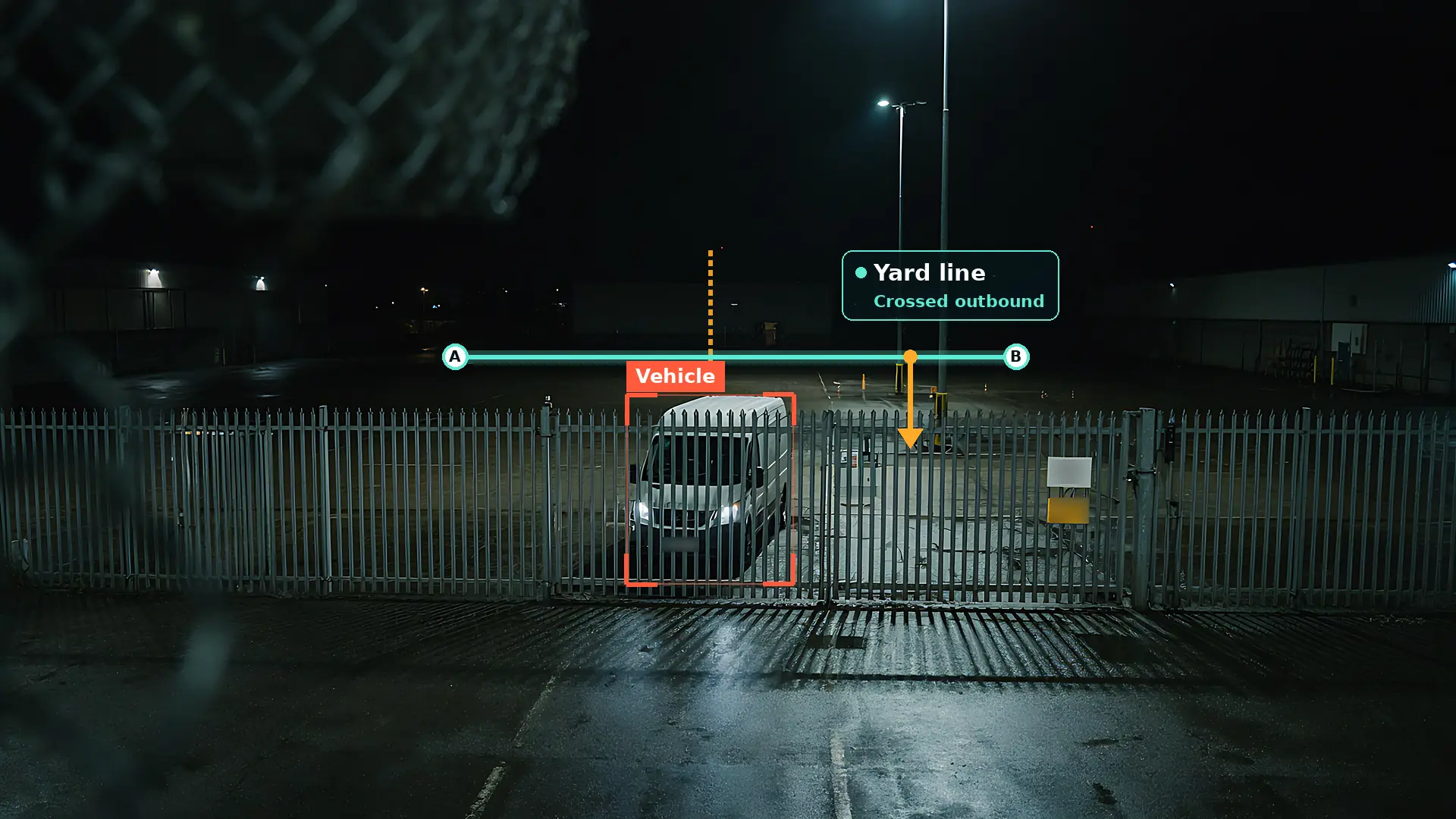
Because the AI follows each person or vehicle from frame to frame, it knows which side of the line it started on and which side it ended up on. A vehicle that pulls up to the line and reverses away has not crossed it; a person who climbs over and drops down on the other side has.
Draw a line and see what would alert
Drag across either camera view to draw your own line, then change the direction or flip the arrow. The result underneath tells you whether that line would raise an alert for what is actually in the frame.
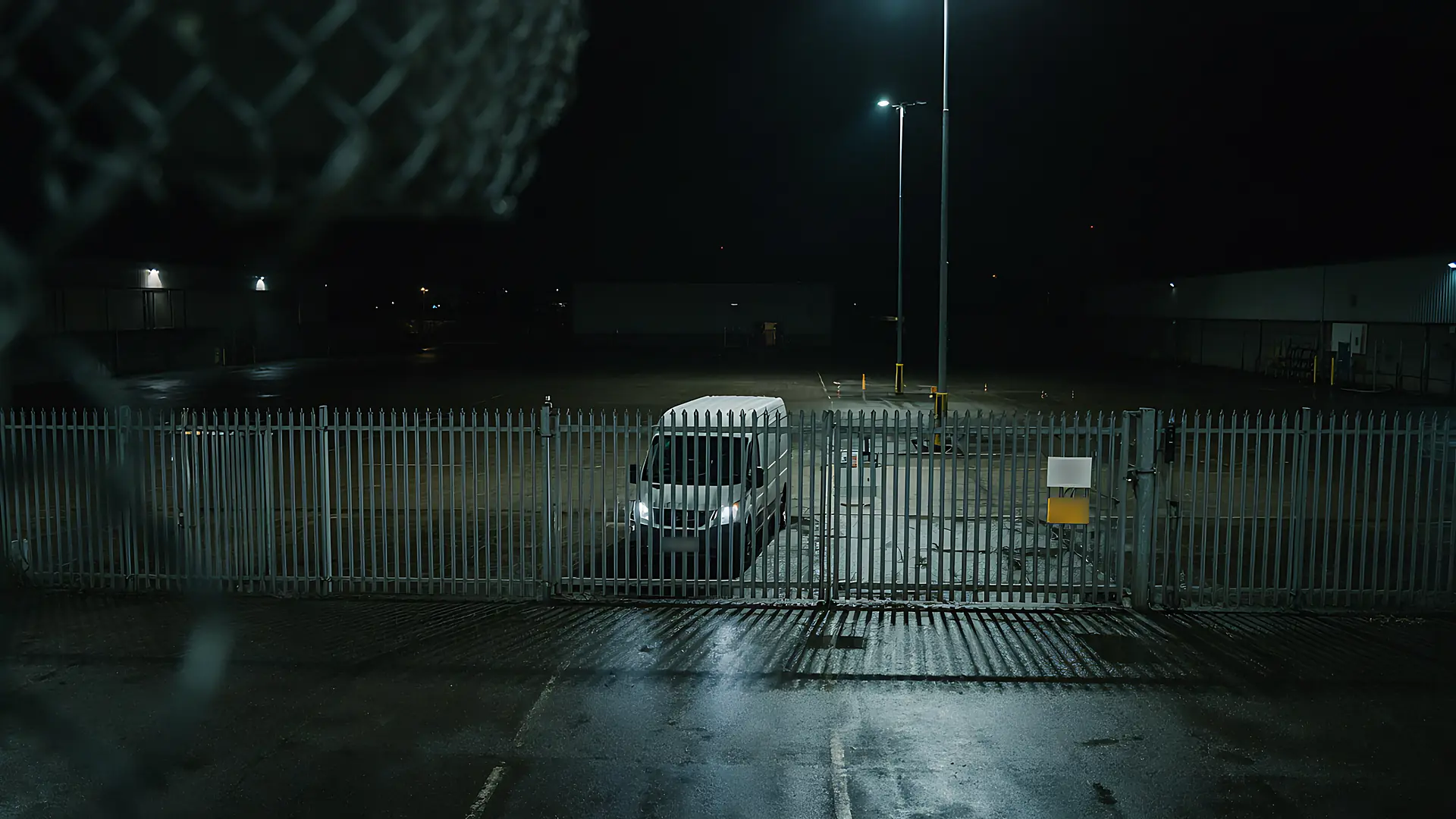
Alert: vehicle crossed the line in the arrow direction, heading for the gate. The clip would go to the app and by email.
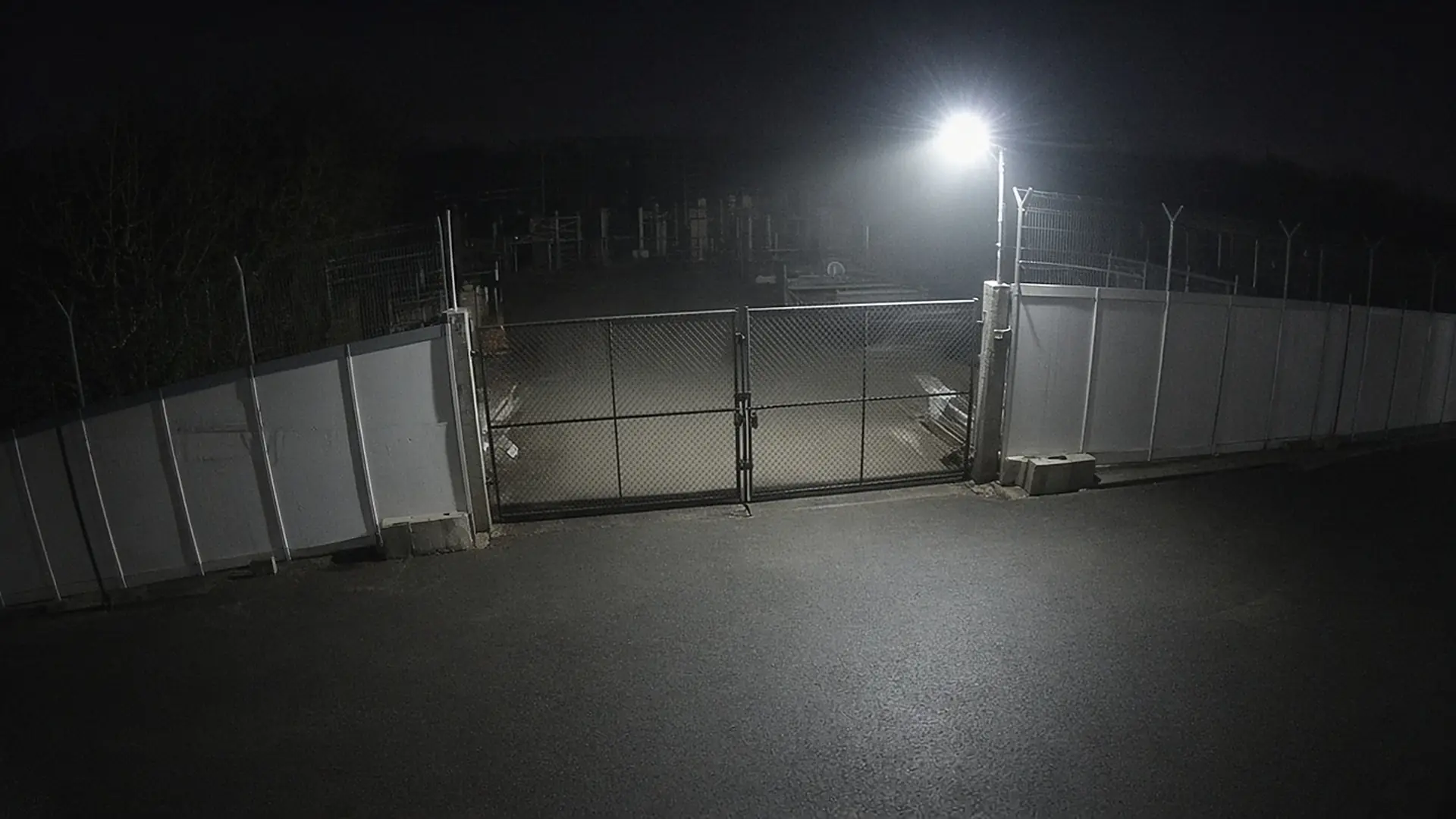
The yard camera shows a van that has driven towards the gate; the dotted trail is its recent path. The gate camera has nothing in view, so whatever line you draw, nothing is detected and no alert is sent. Example frames, not live footage.
Typical placements: fences, gates, roof edges, yard entries and cable routes
A line works best where crossing it can only mean one thing. On most industrial and commercial sites, that gives five obvious places to start.
- 1Fence linesA line along the tops of the fence posts catches anyone climbing over. Set it inbound only, so people walking the inside of the fence on a patrol do not count, and keep the line just above the fence so traffic on the road beyond never touches it.
- 2Gates and gatewaysA line across the gate catches every vehicle and person coming through it. Outbound only suits a yard where the worry is stock or plant leaving at night; inbound only suits a site that is closed to visitors after hours.
- 3Roof edgesFlat roofs over warehouses and units are reached from bins, skips, lean-to buildings and stacked pallets. A line along the parapet or the gutter catches someone coming over the edge, and nothing on the roof itself moves at night.
- 4Yard entriesInside the boundary, a line across the entry to an inner yard, a compound or a loading bay separates the busy areas from the ones that should be empty. It works well with a polygon zone over the yard behind it.
- 5Cable routesBuried and surface cable routes, cable trenches and the ground beside a substation fence are targets for metal theft. A line beside the route catches anyone crossing to reach it out of hours.
Placement on the picture matters as much as placement on the site. Draw a fence line along the tops of the posts, a little above them, rather than along the ground, so a person climbing over crosses it cleanly and a car on the road behind never does. Keep lines away from the edges of the view, where people and vehicles are only partly in the picture, and make sure the area around the line is lit or covered by infrared at night.
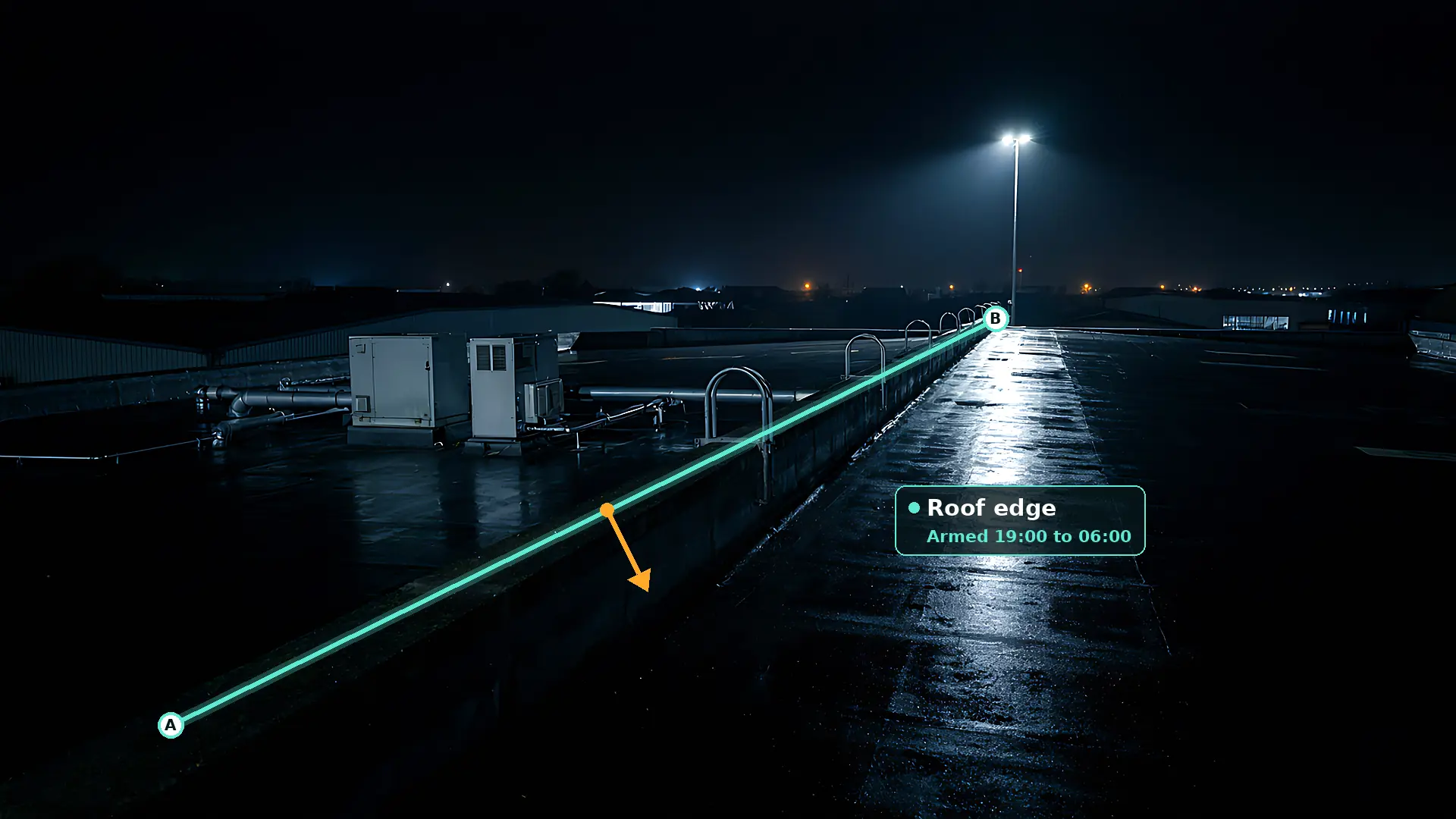
Roofs are an underrated place for a line. Lead and copper are still stripped from roofs, rooflights are a route into buildings, and a flat roof is often reached from bins, skips or a stack of pallets against the wall. A camera on a neighbouring building or high on a wall that looks along the roof can watch the edge with a single line, and on a roof at night nothing should be crossing it. Our metal theft prevention guide covers roofs, cable and the wider pattern of metal theft.
Per-camera schedules, so lines are armed only when they should be
A gate line that alerts every time a delivery arrives during the day is a line someone will switch off. Schedules keep each camera quiet while the site is working and armed once it is not.
Each camera in Woodcock AI has its own schedule. The fence camera can be armed from six in the evening until seven in the morning on weekdays and all weekend; the roof camera every night; the yard exit camera only once the gate is no longer staffed. Bank holidays and shutdowns are easy to handle: change the schedule in the app, for example to keep the gate line armed all day on the bank holiday Monday.
Schedules sit alongside the other rules on the same camera rather than replacing them. A camera can run smoke and flame detection around the clock while its line is armed only out of hours. That matters on sites such as waste and recycling yards, where a fire is a risk at any time but a person at the fence is only a concern once everyone has gone home.
Every crossing arrives with the clip
An alert that says only that a line was crossed leaves someone guessing. A Woodcock AI alert shows them what crossed it, which way and when, so they can decide in moments whether to call the police, send a keyholder or ignore it.
Alerts go out by the Woodcock AI app, as a push notification with the clip, and by email. Each one carries a short plain-English description of what the camera saw, so the person on call can read the situation before they even press play. Alerts to a monitoring centre (ARC) and phone-call alerts are available as optional add-ons. You choose who receives alerts for each camera and each time of day, so fence alerts can go to the site manager in the evening and to the monitoring centre overnight.
A white van has driven across the yard towards the closed gate with its headlights on. It crossed the yard exit line outbound and stopped behind the gate.
Every alert is saved with its clip in the event log, and you can ask your cameras questions in everyday language afterwards, such as whether any vehicle used the yard exit after midnight, to pull out the footage the police or your insurer will want.
Self-learning AI that knows a fox from a trespasser
The quickest way to ruin a line is to let it alert on things nobody cares about. Woodcock AI is built to learn what is normal on each camera, so the alerts that reach your phone are the ones worth looking at.
Each camera gets a model fitted to its own scene, trained on hours of that camera's footage where nothing happened. That no-incident footage is useful in its own right: it teaches the model what the fence line looks like in rain, in fog, under headlights from the road and at three in the morning on infrared. On top of that, every detection has a feedback button. Mark an alert as not useful and the feedback goes into retraining for that camera, so animals that cross the fence every night, or a flag that flaps across the line in the wind, stop raising alerts.
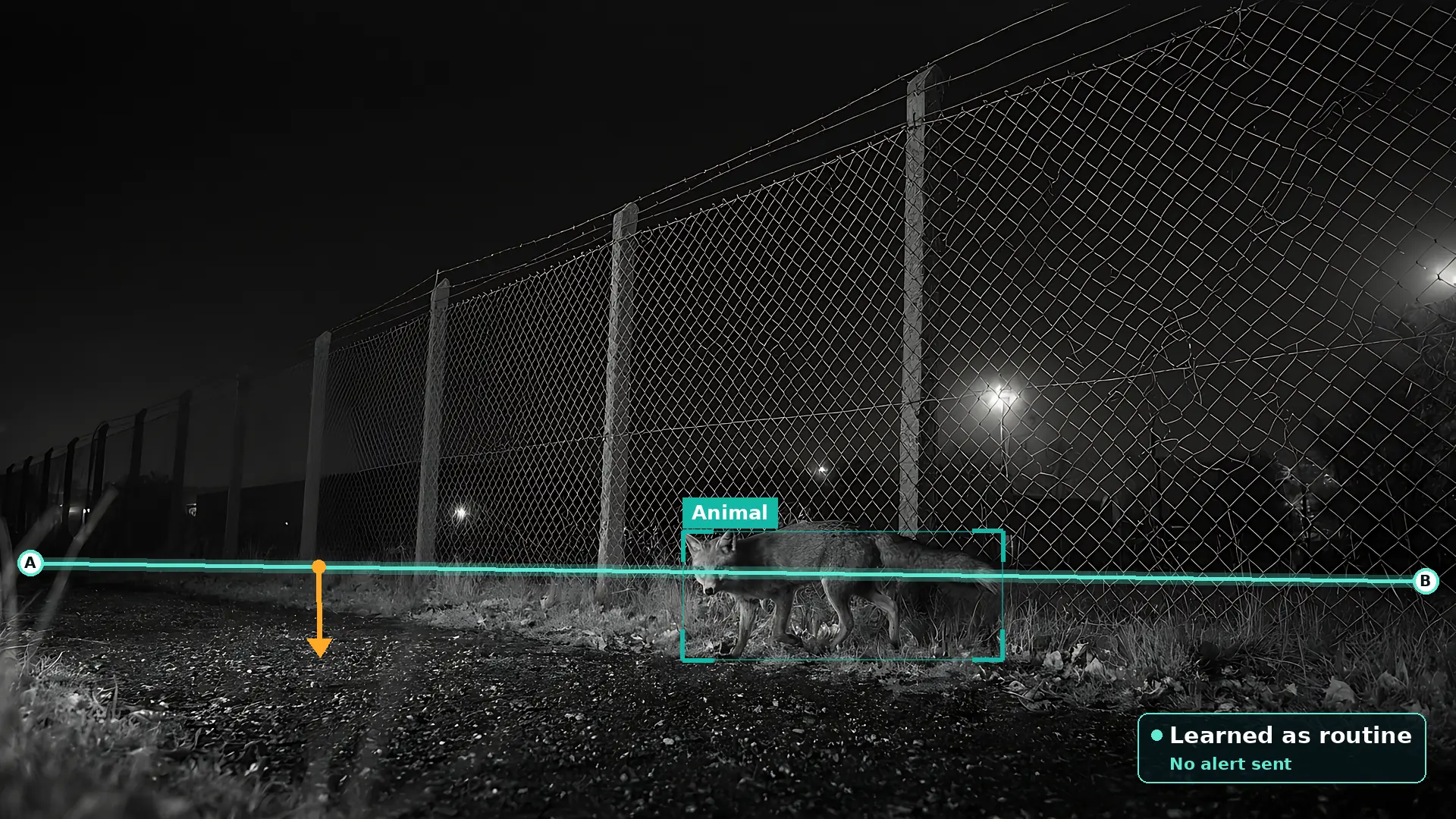
This is the part of the system that has taken years to build. Rather than one generic model for every site, Woodcock AI builds detection around each scene, so a line on a hedge-lined fence in the countryside and a line on a floodlit gate in a city yard each learn their own normal. Read more about self-learning AI, and for practical fixes to lenses, lighting and night views, see how to reduce CCTV false alarms.
Works on the ONVIF and RTSP cameras you already have
You do not need cameras with built-in tripwire analytics. Woodcock AI runs line crossing on the video itself, so it works with most IP cameras and recorders, whichever brand they are.
Woodcock AI connects to your cameras or recorder over ONVIF or RTSP, the standard ways IP cameras share their video, through an on-site edge server or the cloud. Many recorders already have a basic tripwire setting, but it usually runs on pixel changes and has to be set up camera by camera on each brand's own menus. Running lines in Woodcock AI puts every camera, on every site, into one set of rules, one alert format and one event log.
Yard exitONVIF · found on the recorderrtsp://192.168.1.64:554/stream1Not every existing view suits a line. A camera that only sees a gate from far away at night, or one with a dirty dome or a failed infrared lamp, will struggle whatever software runs on it. The free site assessment checks each view and tells you plainly which are ready, which need a small change such as a better angle or extra lighting, and where a new camera would make the biggest difference. If you need more cameras, we offer design, supply and install, from site survey and design through installation and commissioning to go-live and ongoing support.
How to set up line crossing on your cameras
Setting up a line takes minutes per camera once the cameras are connected. Most of the thinking is about where the lines go and who should hear about them.
Free site assessment
We look at your camera views, recorder and network connection, and agree where lines would help: fences, gates, roof edges, yard entries and cable routes.
Connect your cameras
Woodcock AI connects to your existing IP cameras or recorder over ONVIF or RTSP, through an on-site edge server or the cloud.
Draw the lines
On each camera view, place a line from point A to point B where crossing it matters, along the top of a fence or across a gateway.
Set the direction
Choose whether the line alerts on crossings in the arrow direction, the reverse direction or both ways.
Set the schedules and alerts
Arm each camera for the hours that matter and choose who gets each alert by app and email, with the clip. Add a monitoring centre or phone-call alerts if needed.
Let it learn your site
The model on each camera is fitted to its scene, and the feedback button on every detection goes into retraining for your site.
Installers and security companies can do all of this for their customers through the installer programme, then manage every site from one place. The same approach works across construction sites, industrial sites and remote sites such as solar farms and battery storage. Read how it works for the technical detail.
Line crossing questions
Short answers on tripwires, direction, schedules and false alerts. More in the Woodcock AI FAQ.
What is line crossing detection?
Line crossing detection raises an alert when a person or vehicle crosses a line you draw on a camera view. You place the line where crossing it matters, such as along the top of a fence, across a gateway or along a roof edge, choose which direction counts and when the line is armed, and Woodcock AI sends an alert with the clip when it is crossed.
Is line crossing the same as a virtual tripwire?
Yes. Virtual tripwire, tripwire detection, line crossing and cross-line detection are different names for the same idea: an invisible line on the camera view that triggers an alert when something crosses it. The difference between systems is in what decides that something crossed. Woodcock AI only counts people and vehicles that it has detected in the scene, so moving shadows, rain and swaying branches crossing the line do not raise alerts.
Should I use a line or a polygon zone?
Use a line when the question is whether something crossed a boundary, a gateway or an edge, and the direction matters. Use a polygon detection zone when the question is whether something is inside an area, such as a compound, a stockpile or a stretch of yard. Many cameras use both: a line on the gate and a polygon over the yard behind it.
Can a line alert in one direction only?
Yes. Every line has a direction setting. It can alert only when something crosses in the direction of the arrow, only in the reverse direction, or both ways. A yard exit line set to outbound catches a vehicle leaving after hours, while staff walking in through the same gateway in the morning do not raise an alert.
Will foxes, birds and headlights set it off?
They should not. The AI looks for people and vehicles, not movement, so headlights sweeping across a fence or rain on the lens do not count as a crossing. Each camera has a model fitted to its own scene and trained on footage where nothing happened, and the feedback button on every detection goes into retraining, so animals that cross your fence line at night are learned as routine.
Does it work with my existing cameras?
Usually, yes. Woodcock AI works with most IP cameras and recorders over ONVIF or RTSP, so line crossing can run on the cameras you already have. The free site assessment checks each view, especially at night, and tells you which cameras suit a line and which would need to be moved or added.
Can each line have its own schedule?
Yes. Each camera has its own schedule, so a line on the yard exit can be armed overnight, a roof-edge line every night and a fence line all weekend. Schedules can be changed in the app, for example to keep the gate line armed all day on a bank holiday.
How are line-crossing alerts sent?
By the Woodcock AI app, as a push notification with the clip and a plain-English description of what the camera saw, and by email, to the people you choose for each camera and time. Alerts to a monitoring centre (ARC) and phone-call alerts are available as optional add-ons.
Can my installer set up line crossing for us?
Yes. Installers and security companies can connect your cameras, draw the lines and set the schedules through the installer programme. If you would rather we handle everything, we offer design, supply and install, from site survey to go-live and ongoing support.
Find out where lines would help on your site
A free site assessment reviews your camera views on fences, gates, roofs and yard entries, and confirms what is supported before anything is set up.